
First steps
1. Download a model
Section titled “1. Download a model”Open Models → Catalog. Recommended lists a few small models to start with; Hugging Face searches every public GGUF model.
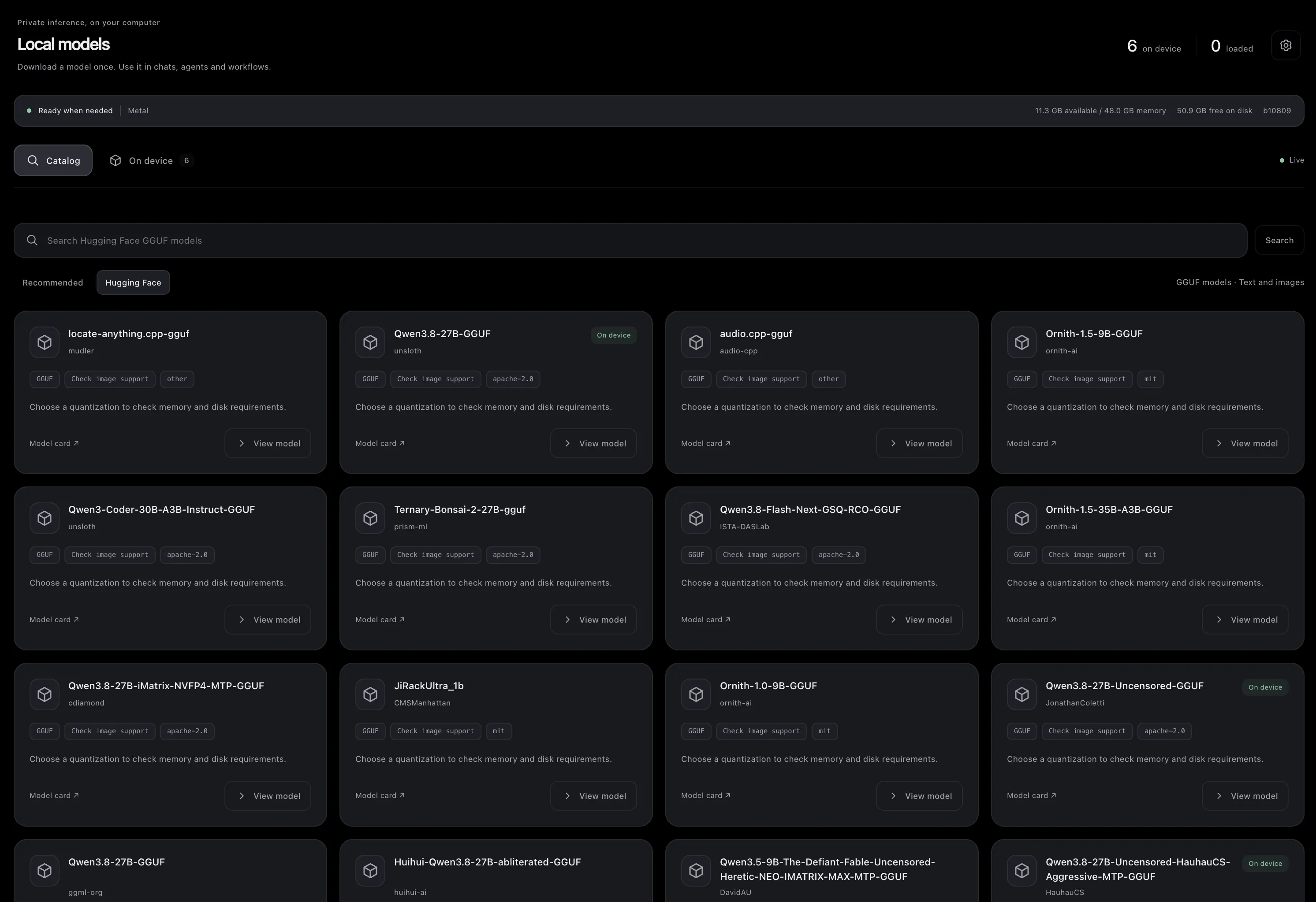
Open a model and choose a quantization. Before the download starts, the app estimates the memory and disk it needs on this computer and says whether it fits. Start small, for example Qwen2.5 1.5B Instruct, and move up as memory allows.
2. Use it in a chat
Section titled “2. Use it in a chat”On On device, choose Use in chat for the current chat or Set default for new chats. The model loads on first use; Load model loads it ahead of time and Unload frees the memory while keeping the files.
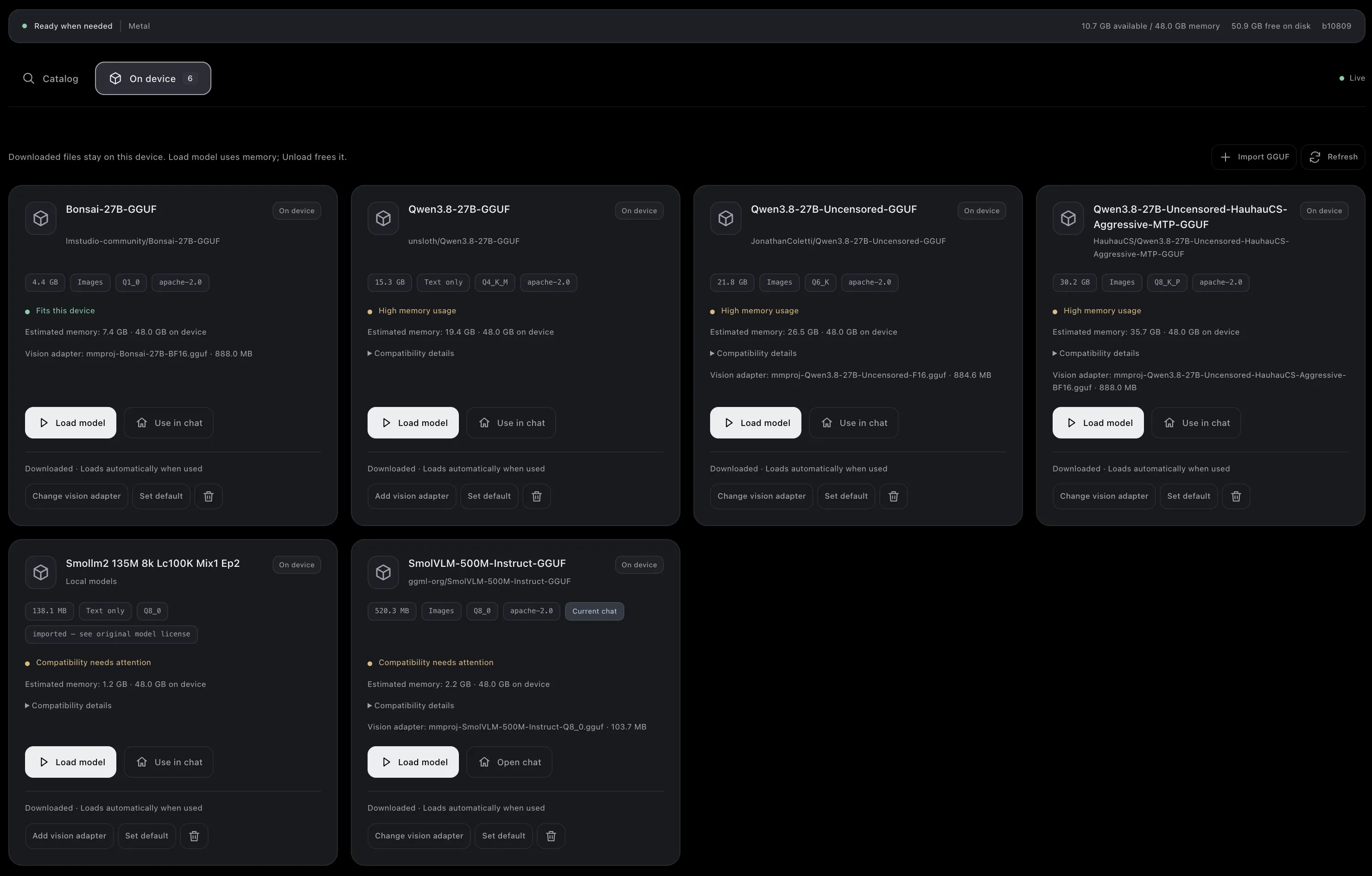
Type in the chat and send. The panel on the right (Session Setup) holds the chat’s mode, model and subagents.
3. Add more when you need it
Section titled “3. Add more when you need it”- Cloud models: add provider keys in Settings → Models & Providers and use Test provider.
- Tools: connect MCP servers in Settings → MCP Servers, or services such as Notion and GitHub in Settings → Plugins. See MCP and plugins.
- A GPU server: install the server on a Linux machine and connect it in Remote.
Account
Section titled “Account”Local chats and models work without an account. Sign in (Settings → Account) to use Remote and to see token usage across your computers and servers.